
Running Subscriptions in Maxio Advanced Billing: A Starter Guide


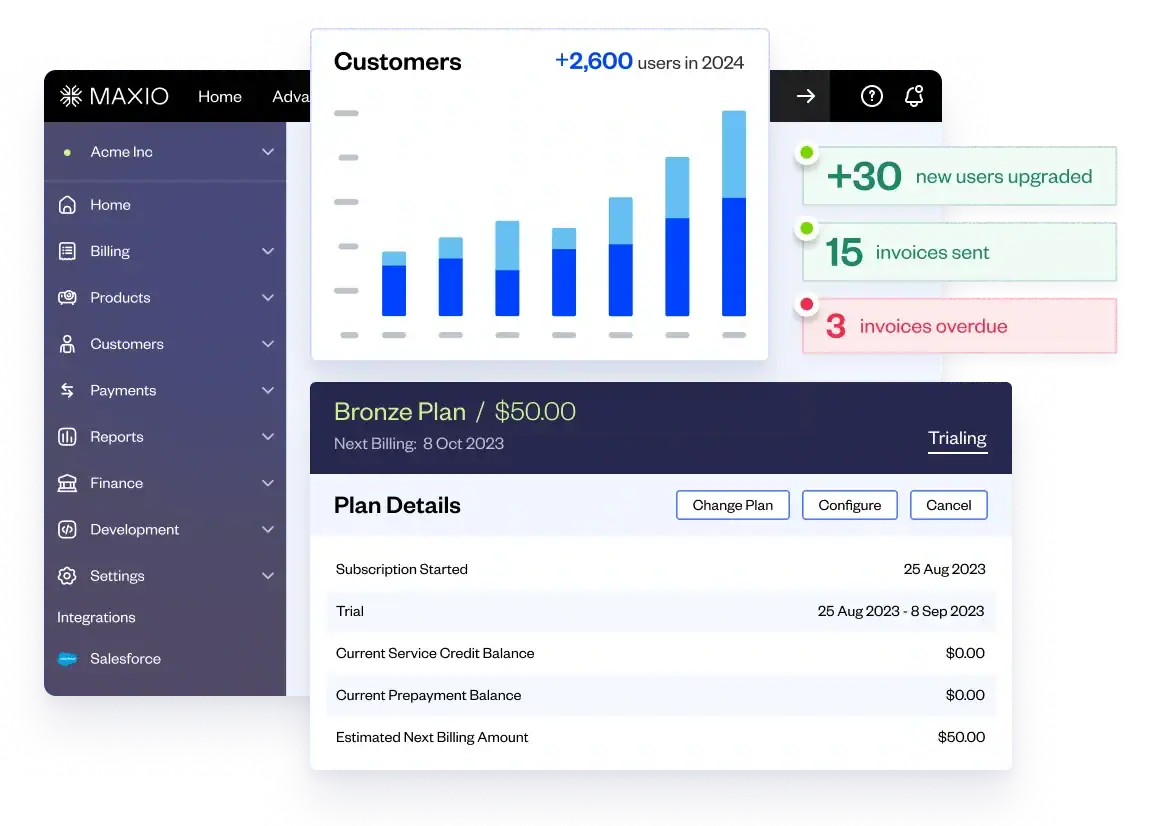


Once your subscriptions are set up in Maxio Advanced Billing, running them day to day becomes a small, predictable set of tasks. You’ll create subscriptions, adjust them as customers grow or change plans, apply a credit, record a payment that came in off-platform, and occasionally correct an invoice. Almost all of it happens on one screen, and once you know your way around, the rest is a short list of actions you’ll repeat for years.
This guide walks that list from the beginning: where everything lives, how to create a subscription, the actions you’ll take on it once it’s live, how to handle a mid-cycle change, and how to correct an invoice cleanly when one needs it. Using the built-in action for each keeps your records clean, so nothing needs to be reconciled by hand later.
Start on the subscription summary
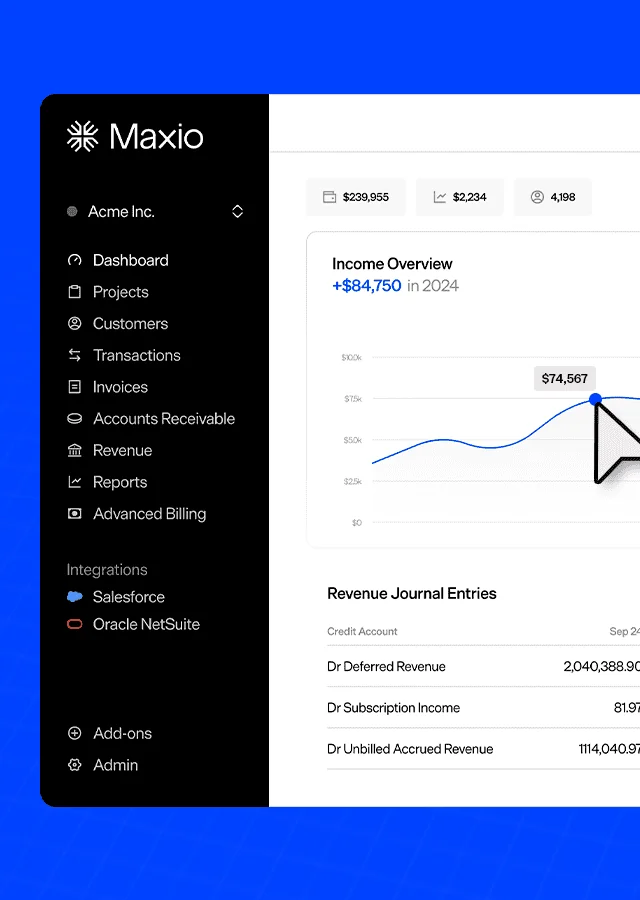
Most day-to-day management happens on a single screen: the subscription summary. It’s the page you land on for any individual subscription, and it’s worth getting oriented before you do anything else, because nearly every action below starts here.
The summary shows you the state of the subscription at a glance: the product and components the customer is on, the current balance, the upcoming invoice (the proforma) as it stands right now, and the history of what’s already happened. The menu you’ll use most is subscription actions, a dropdown on this page that holds the common operations, crediting, recording a payment, cancelling, holding, reactivating. When this guide says “through subscription actions,” this is the menu it means.
Spend a moment reading a real subscription’s summary before you change anything on it. Knowing where the balance, the proforma, and the actions menu sit turns everything that follows into muscle memory.
Creating a subscription
A subscription ties a customer to a product, and you build it in a few steps. You start by creating or selecting the customer, then choose a collection method, remittance, where the customer pays the invoice manually, or charging a payment method on file. You set the first billing date, then select the product the customer is signing up for, a Gold Plan at $100 a month, for example. If the product has components, like a per-seat app license, you add the quantity the customer needs, say five licenses. Then you create the subscription, and you land on the summary page you just got familiar with.
The two choices worth making deliberately are the collection method, which determines whether the customer gets an invoice to pay or a card gets charged, and the first billing date, which sets the rhythm of every renewal that follows.
Working with a live subscription
Once a subscription exists, the everyday actions run through the subscription actions menu on its summary page. Most are quick. A few carry a choice that changes what the customer experiences, and those are the ones to slow down on.
Giving and deducting service credit
Service credit is a balance you hold on the subscription that applies automatically against the next invoice when it’s issued. You give it through subscription actions, with an amount and a memo, and you can deduct it the same way if you credited too much or credited in error.
The memo is the part worth taking seriously. A credit with “goodwill for the March outage” attached explains itself months later; a credit with a blank memo becomes a number nobody can account for when finance asks. Whatever the reason, write it down as you go.
The behavior to remember: service credit waits on the subscription rather than paying out. It comes off the next invoice automatically when that invoice is issued. So a credit you give today shows up as a reduction on the customer’s next bill, not as a separate refund.
Recording a prepayment
Sometimes a payment arrives outside the platform, a bank transfer or an ACH payment straight to your account, and the system needs to know about it. Recording a prepayment captures that: you note the source, an external transaction number or reference, a memo, and the amount, and it creates a balance on the subscription that future invoices draw against.
This is the clean way to handle money that came in before, or separately from, the normal invoice flow. The reference and memo matter here for the same reason they do on a credit: when you reconcile against the bank later, the external transaction number is what ties the prepayment in the platform to the deposit in your account.
Initiating a cancellation
Cancellation runs through subscription actions, with a reason or message you can record, and one decision that changes everything downstream: cancel immediately, or cancel at the end of the period.
Cancel immediately ends the subscription now. Cancel at the end of the period lets the customer keep what they’re paying for until the billing period they’ve already paid for runs out, then stops the renewal. The reason field is worth filling in every time, not for the platform but for you: a cancellation log with real reasons attached is the difference between knowing why customers leave and guessing.
The choice between immediate and end-of-period is the one to get right in the moment, because it’s about what the customer experiences. Someone who asked to stop being billed but expects access through the month they paid for should be an end-of-period cancellation, not an immediate one.
Putting a subscription on hold
A hold pauses a subscription without ending it, which is the right tool when a customer wants to stop temporarily rather than leave. There are two ways to set it: hold until you manually resume it, for an open-ended pause, or set an automatic resume date, for a pause with a known end like a six-month break. Either way you can edit the resume date later if the customer needs more time, or resume immediately if they come back early.
The reason to reach for hold instead of cancellation is exactly that it’s reversible without reconstruction. A held subscription keeps its configuration and picks up where it left off. A cancelled one has to be rebuilt. When a customer says “pause me for a few months,” a hold preserves everything; a cancellation throws it away.
Reactivating a cancelled subscription
If a subscription has been cancelled, you can reactivate it from the same subscription actions menu, and there’s a choice here that mirrors the cancellation decision. If the next billing date hasn’t passed yet, you can resume the billing period and pick up as though the subscription was never cancelled. If it has passed, you start a new billing period, which initiates fresh charges as if the customer signed up new from today.
Knowing which one you’re doing matters because they bill differently. Resuming an unexpired period continues the existing cycle; starting a new period charges from scratch. The platform decides what’s available based on whether that next billing date has passed, but you decide whether reactivation is meant to be a seamless continuation or a fresh start, and the customer’s invoice will reflect that choice.
Changing a component mid-cycle
Customers grow and shrink, and the most common change is a component quantity, more seats, fewer licenses, a bigger allowance. You make the change on the subscription, and Advanced Billing asks how to handle the money for the part of the period that’s already been paid for. That’s proration, and you choose how it behaves: charge the full amount, prorate it for the days remaining, or make no charge for the change until the next renewal.
There’s a second choice alongside it: whether to accrue the charge and add it to the next invoice, or charge it immediately to the payment method on file. If you charge immediately and it fails, you also decide how dunning handles the failure. It’s worth knowing the prompt is coming, so a routine seat increase doesn’t turn into a surprise charge the customer didn’t expect.
The thing to hold onto: a mid-cycle change carries a billing decision with it. Picking the proration and timing on purpose is what keeps the next invoice matching what the customer agreed to.
Fixing an invoice that went out wrong
When an invoice goes out with a missing line item or a wrong charge, the instinct is to patch it: edit a number here, add a manual adjustment there. Patching leaves the original record half-corrected and your reporting quietly wrong, so the invoice looks fixed while the books don’t agree. The path that holds up corrects the invoice on the invoice itself, not through the subscription actions menu, and it’s worth knowing before you need it, because you usually need it with a customer waiting.
Voiding the wrong invoice
Voiding is the first move. It does more than hide the invoice; it credits it out and counteracts the revenue that invoice recorded, so your reporting reflects that the charge never should have stood. That’s the difference between voiding and deleting a number off the page: the void keeps the trail and corrects the books at the same time. You do it from the invoice’s own options, alongside the other things you can do to an invoice there, resend it by email, add CC or BCC recipients, attach a document like a W-9, or view and download the PDF.
Creating a replacement ad hoc invoice
Once the wrong invoice is voided, you replace it with an ad hoc invoice: a one-time invoice you build by hand, which is also what you reach for when a subscription invoice leaves something off and you need a standalone charge.
You create it from the subscription’s invoices tab. From there you can set the issue and due dates, and net terms either as a fixed number of days or calculated automatically from the dates you enter. You add line items two ways: pull items from your product catalog, or add ad hoc items that exist only on this invoice, each with its own quantity, price, and date range. You can apply coupons the same way, from the catalog or one-off. And you can add a memo and payment instructions, your bank details, for instance, if the customer is remitting payment directly.
One thing the demo makes clear and the interface expects: after you choose a line item, you have to click to actually add it to the invoice, or it won’t be there. A small step, but the one people miss.
Then you choose how it collects. Remittance issues the invoice for the customer to pay manually. Or you process a payment method on file immediately, and if that payment fails, you decide on the spot: roll back the whole creation and delete the invoice, or issue it as open and collect on the next renewal. That choice is worth making deliberately because it determines whether a failed charge leaves you with a stray open invoice or a clean slate.
Recording a payment that came in outside the system
Not every invoice issue is a mistake. Sometimes the invoice is correct and a payment simply arrived outside the normal flow, a bank transfer or money order, and the open invoice needs to reflect it. You record the payment against the invoice directly. Beyond charging a card on file, you can record an external payment with its details, the date it was received, and the amount to apply. Apply a partial amount and the invoice shows the payment but stays open for the remainder; apply the full balance and it closes.
This keeps the invoice honest about what’s actually been paid, so it isn’t left open when money has changed hands or marked paid when it hasn’t. (Recording a payment and voiding a balance are shown together in the clip above, since they often happen on the same invoice.)
Where to go next
These cover the operations you’ll use most as you get going. The subscription page does more, custom fields let you carry PO numbers or reference data onto an invoice, and the self-service tools let customers handle some of these actions themselves, both worth exploring once the basics feel routine.
For anything that doesn’t fit a clean path, a tangled invoice, an unusual proration, a reactivation you’re unsure how to bill, the support team can work through the specific case with you. Most situations turn out to map to a setting that already exists, so it’s quicker to ask than to build a workaround.
This post draws on our Customer Acceleration webinar, “New to Advanced Billing: Day-to-Day Operations,” which walks through managing subscriptions in Maxio Advanced Billing day to day. Watch the full session on demand.