HubSpot Billing Integration: How Maxio Connects Sales and Subscription Billing



A deal closes in HubSpot. Sales has the customer context, pricing, terms, and product details. Before billing can begin, finance still needs accurate subscription information, billing terms, invoice settings, and customer data.
When that handoff runs through spreadsheets, manual re-entry, or back-and-forth between teams, errors creep in. Pricing gets entered incorrectly. Billing starts late. Subscription details get lost between systems. And once a deal moves past closed-won, customer-facing teams lose sight of what happens next.
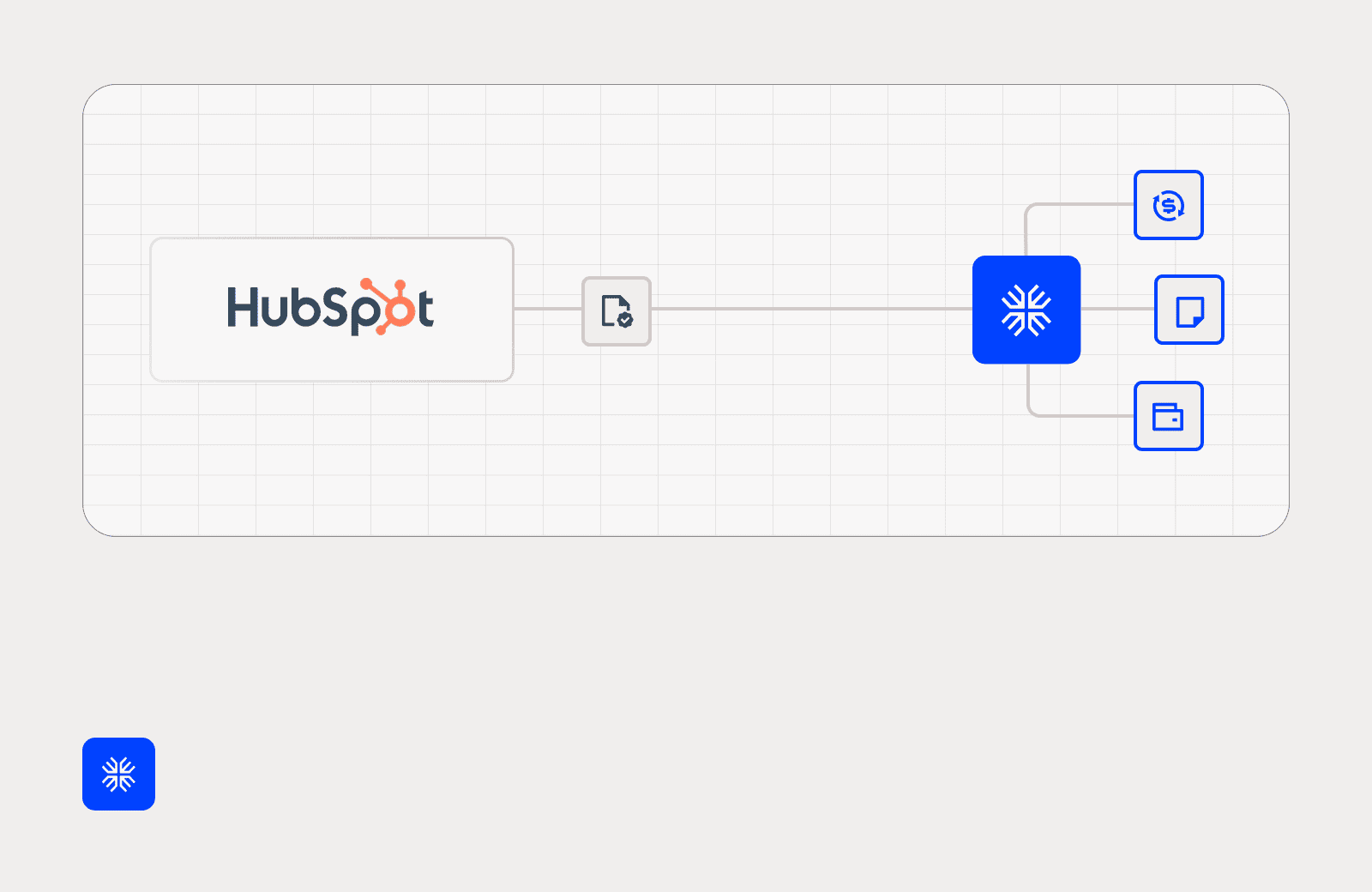
Maxio’s HubSpot integration gives SaaS and AI businesses a direct path from the deal into billing. Sales keeps working in HubSpot, and once a deal is set up, a rep can create a billing-ready subscription in Maxio straight from it.
What is the Maxio HubSpot integration?
The Maxio HubSpot integration connects HubSpot CRM workflows with Maxio’s subscription billing and revenue management capabilities. It lets SaaS and AI businesses:
- Sync customer and contact data between HubSpot and Maxio in both directions
- Sync the Maxio product catalog into HubSpot’s Product Library
- Build HubSpot deals using Maxio products and components as line items
- Create subscriptions in Maxio from HubSpot deal data
- Surface billing and subscription activity in HubSpot
Why the HubSpot-to-billing handoff matters
HubSpot is where many go-to-market teams manage prospects, pipeline, deals, quotes, and customer relationships. Maxio is where SaaS and AI businesses manage the financial operations behind those relationships, including billing, subscription management, invoices, and recurring revenue workflows.
Without a connected handoff between CRM and billing systems, teams often rely on manual processes to move information from sales to finance. That creates risk at one of the most important points in the customer journey.
A connected HubSpot-to-billing workflow helps teams reduce that risk by linking the sales motion to the billing process.
With Maxio and HubSpot connected, sales reps can work inside HubSpot while using Maxio product catalog data to build deals with line items. Once a deal has its line items and billing fields, a rep can create the subscription in Maxio from those deal properties and line items.
That allows teams to:
- Reduce manual data entry
- Improve billing accuracy
- Keep sales, finance, and RevOps aligned
- Move faster from closed-won to active subscription
- Give customer-facing teams better visibility into billing activity
How Maxio connects HubSpot deals to subscription billing
The integration works in four steps, from catalog sync to a finalized subscription. Reps stay in HubSpot the whole time, and Maxio applies the subscription and billing logic underneath.
1. Sync the Maxio product catalog to HubSpot
Products, components, price points, and coupons from Maxio sync into HubSpot’s Product Library. Reps build deals from the same approved catalog items finance and billing teams rely on, so every line item on a deal ties back to the billing source of truth.
2. Build HubSpot deals with Maxio products and components
With the catalog in HubSpot, reps create a deal and add the right products and components as line items. They manage the deal and keep it moving without leaving the CRM.
The integration also supports billing fields that Maxio uses to set up the subscription. Depending on the workflow, these may include:
- Collection method
- First billing date
- Net terms
- Invoice email preferences
- Tax-exempt status
- VAT number
- CC emails
- Custom fields
A subscription needs the deal amount. These fields capture the billing start date, payment method, invoice rules, and any tax detailsso the subscription can be created from what sales already entered in HubSpot.
3. Create a subscription in Maxio from HubSpot deal data
When a deal is ready, a rep creates the subscription in Maxio directly from the HubSpot deal, using its properties and line items. The details sales already captured carry straight into the subscription, so finance and RevOps don’t have to re-enter them in a separate system. Teams move faster after close, and customers get a smoother start to their billing relationship.
4. Preview subscription details before finalizing
Reps can preview first-invoice and ongoing-fee details in HubSpot before the subscription is finalized. This matters most when billing frequency, discounts, setup fees, taxes, and recurring charges need review before billing begins.
Previews give sales and finance a shared checkpoint before the customer moves into an active billing relationship.
Give sales and customer-facing teams billing visibility in HubSpot
The sales team’s need for visibility does not end when a deal closes. Reps, account managers, and customer success teams often need answers to questions like:
- Was the subscription created?
- Was the first invoice issued?
- Did the payment succeed?
- Is the account past due?
- Is the customer approaching renewal?
- Has the subscription changed?
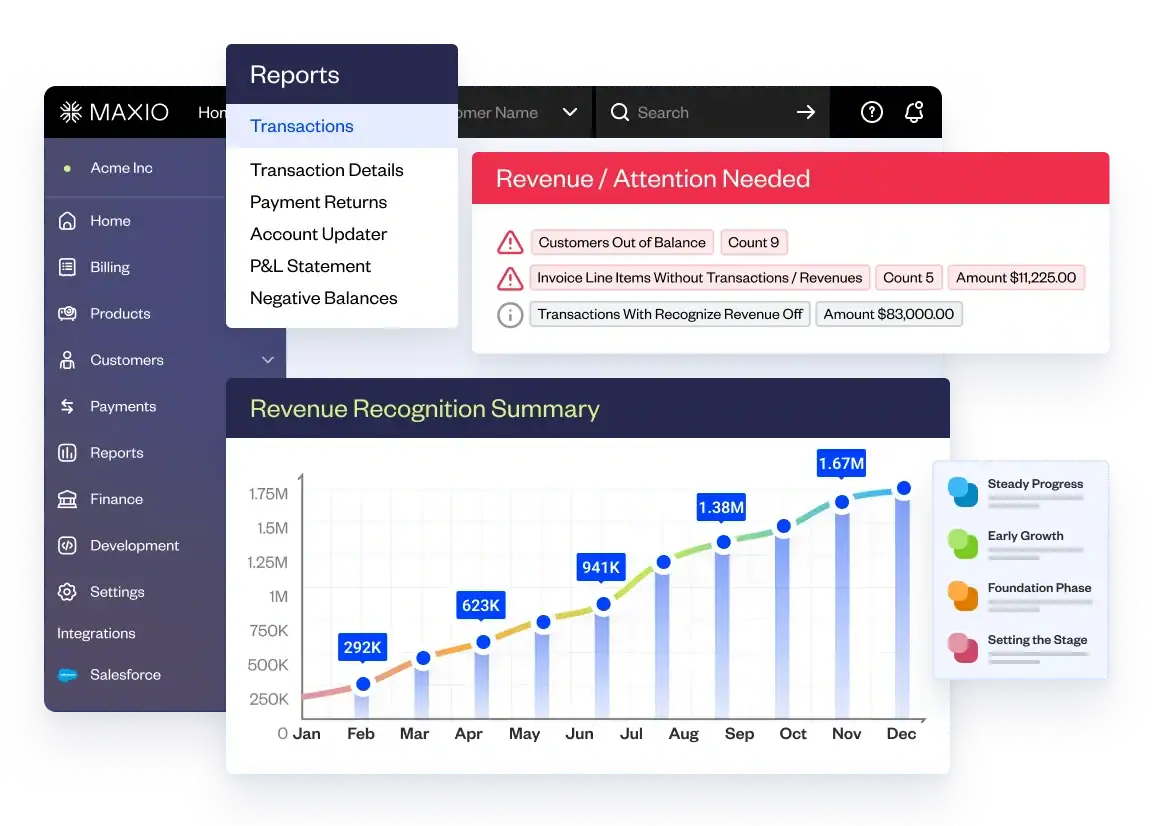
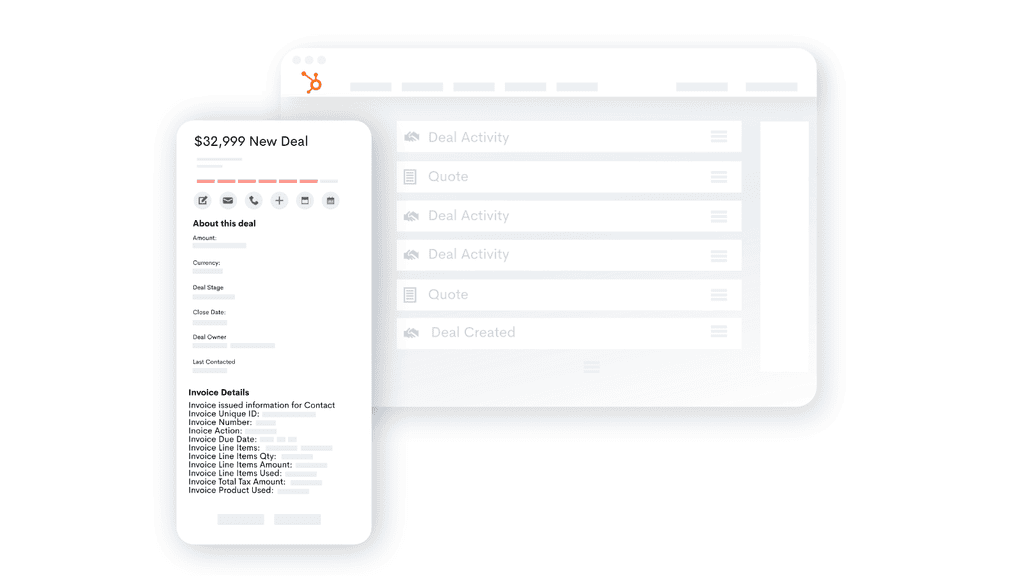
Maxio can bring billing and subscription timeline events into HubSpot, so customer-facing teams can see what’s happening with an account without asking finance for every update. Those events include invoice issued, payment success, payment failure, renewal success, subscription state change, dunning step reached, card updated, upcoming renewal notice, and upgrade or downgrade activity.
Sales can see what happened after the handoff. Customer success can spot billing issues earlier. Finance spends less time answering one-off status requests. RevOps gets a cleaner operating model across the customer lifecycle.
Built for SaaS and AI billing complexity
Many SaaS and AI businesses sell across multiple entities, currencies, sites, products, and pricing models. The integration supports multi-site usage and multi-currency workflows. Product Library sync requires a HubSpot Professional or Enterprise account.”
For multi-currency workflows, teams should configure multi-currency settings in both HubSpot and Maxio Advanced Billing before connecting the integration. That way, the integration reflects how the business actually sells and bills from day one.
Best practices for setting up the Maxio HubSpot integration
Test in a sandbox first
Launch a HubSpot test account or sandbox before enabling the integration in production. Common setup issues include connecting to the wrong HubSpot account and not filtering activities correctly to display Maxio timeline events.
Make sure the right admins are involved
The user configuring the integration needs admin permissions in both HubSpot and Maxio.
Clean up your product catalog first
Because the Maxio catalog syncs into HubSpot’s Product Library, review products, components, coupons, and price points before syncing. A clean catalog makes it easier for reps to pick the right items and keeps billing accurate.
Create custom fields before the initial sync
If you plan to map custom fields into HubSpot, create them before connecting the integration.
Add the right fields to HubSpot views
Expose the relevant Maxio fields on HubSpot deal and contact records so reps can use them, including collection method, first billing date, net terms, tax-exempt status, VAT number, CC emails, and invoice email settings.
Organize large product catalogs
HubSpot Product Library folders help reps find the right products and components in complex catalogs. They’re especially useful for businesses with multiple product families, pricing tiers, usage-based components, add-ons, or expansion motions.
What to know before using the HubSpot integration
HubSpot Free is not supported. Starter, Professional, and Enterprise are supported. Product Library sync requires Professional or Enterprise, and Starter supports more limited customer and contact sync workflows.
Move from closed-won to cash with less manual work
Closing the deal is a win. Turning it into revenue still means creating the customer, activating the subscription, issuing accurate invoices, collecting payment, tracking usage or recurring charges, managing renewals, and keeping customer-facing teams informed.
Maxio’s HubSpot integration connects those steps so every team can do its part with less manual work. Sales keeps working in HubSpot, finance gets billing-ready subscriptions without retyping deal details, and everyone who touches the account can see where it stands.
To see how Maxio can connect your sales and billing workflows and get closed-won deals into active subscriptions faster, get a demo.
HubSpot billing integration FAQs
Does Maxio integrate with HubSpot?
Yes. Maxio connects HubSpot CRM workflows with subscription billing. The integration syncs customer and contact data, syncs the Maxio product catalog into HubSpot’s Product Library, supports HubSpot deals and line items, and creates subscriptions in Maxio from HubSpot deal data.
Can HubSpot create subscriptions in Maxio?
Yes. Once the integration is configured, a rep can create subscriptions in Maxio, so finance doesn’t have to re-enter deal details by hand.
Can sales reps use Maxio products in HubSpot deals?
Yes. Maxio products, components, price points, and coupons sync into HubSpot’s Product Library. Reps can then use those catalog items as line items on HubSpot deals.
Does the integration support HubSpot quotes?
Yes. Because the integration uses HubSpot-native line item functionality, sales teams can use HubSpot quote workflows with Maxio-backed products and components.
Does changing a HubSpot line item price change the subscription price in Maxio?
No. In Maxio Advanced Billing, editing the price on a HubSpot line item does not change the resulting subscription price. The subscription uses the synced catalog prices from Advanced Billing.
Who should use the Maxio HubSpot integration?
The integration is a strong fit for SaaS and AI businesses that sell through HubSpot and need deals, quotes, product catalog data, subscriptions, invoices, and billing activity connected across sales, finance, and RevOps.